By the end of this page you will have a profile with your Stake history in it, your purchases and redemptions beside it, and a first budget.
The pictures on this page show a made-up profile, not real play.
Profiles
A profile is one person's data, in its own database. Most people need exactly one.
Make a second profile only for a second person, or a second Stake account. HouseBreaker will not mix two accounts' bets into one profile: it notices and offers to make a profile for the other one.
The first time the app starts, it walks you through five steps. Every step except the first can be skipped and done later from Data sources.
Step 1: name the profile
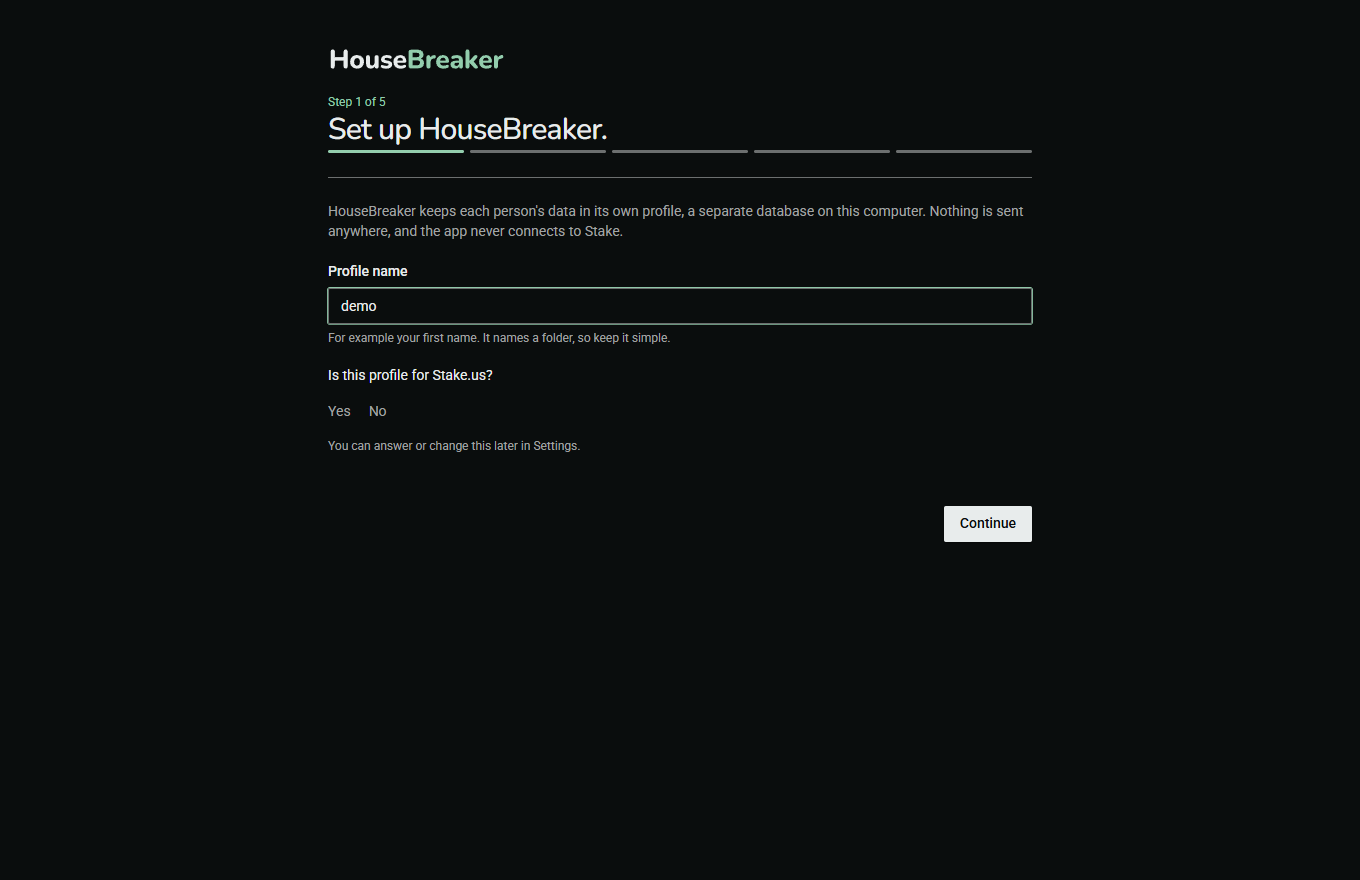
Type a short name, such as your first name. It names a folder on your disk, so keep it simple.
The step also asks Is this profile for Stake.us? Each profile holds one Stake account, so the answer is for the whole profile. Answer Yes if you play on stake.us. You can leave it unanswered and set it later in Settings.
Step 2: your bet archive
The archive is the heart of the app. It is Stake's own record of every bet you have placed, with the full outcome of each.
How to ask Stake for a Game Archive
Stake offers your past bets as Game Archive files: one .json file per day of play. You request them from your own account on stake.us and download them yourself. HouseBreaker never signs in to Stake and cannot fetch them for you.
- On stake.us, sign in and open your bet history.
- Find the archive of past bets and download the files for the days you want. To have your whole history, download them all.
- Put the files in one folder of their own, for example
Documents\Stake archive.
If Stake gives you a .zip, extract it first: HouseBreaker reads the .json files inside, not the zip.
The files hold your play history. Keep them somewhere private.
Import it
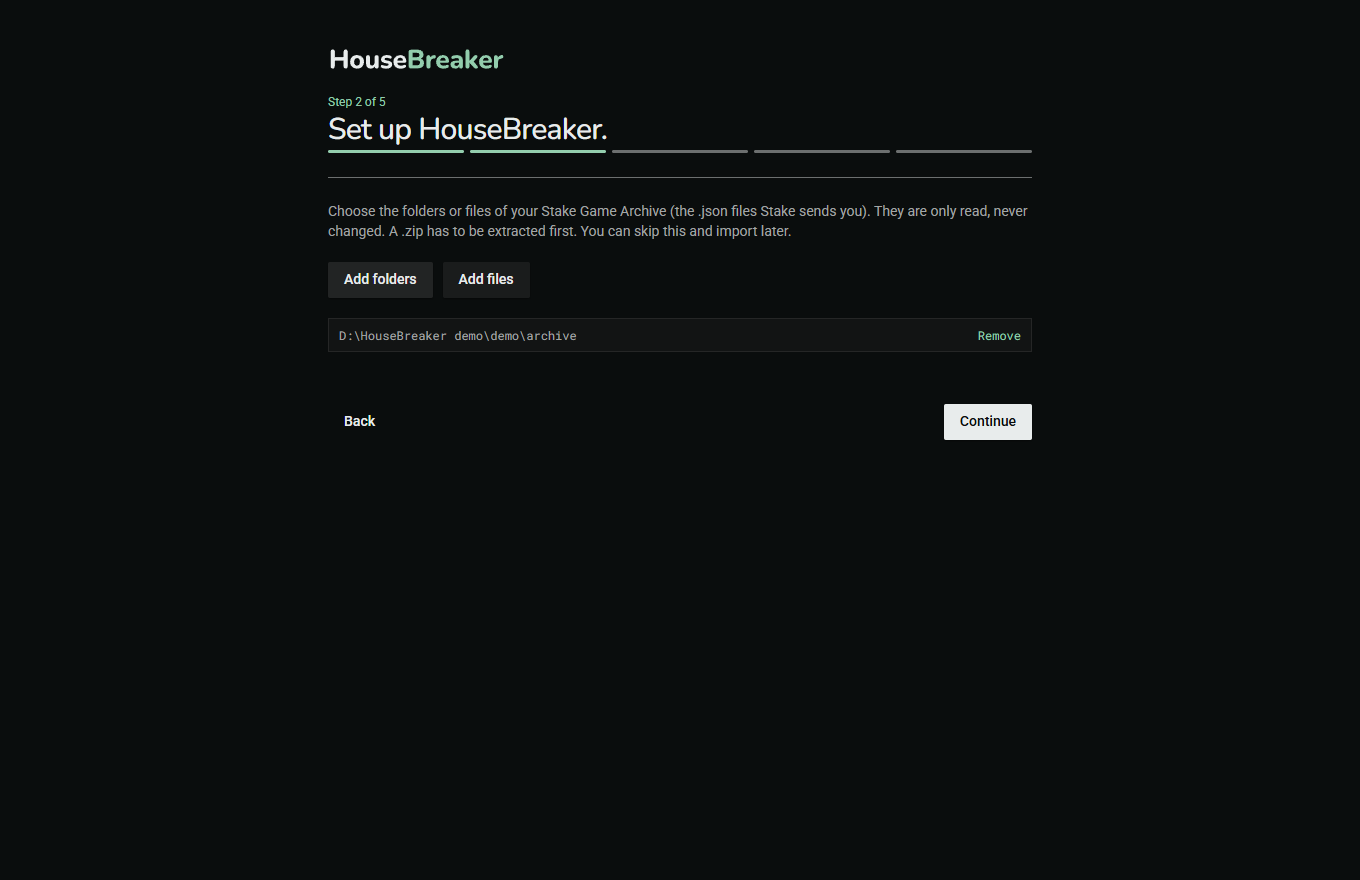
Press Add folders and choose the folder that holds the files. HouseBreaker searches it for archive files.
- The files are only read. They are never changed, moved or deleted.
- Importing the same file twice adds nothing, so there is no harm in choosing a folder again later when it holds new files.
- A large archive takes a few minutes. The window stays usable meanwhile.
Step 3: the purchase and redemption exports
The bet archive holds no purchases. Without these two files the money screens have nothing to show for cash in and out, and say "No data" rather than zero.
Stake provides two exports as .csv files from your account's transaction history:
- Purchases (card purchases).
- Redemptions (bank transfers out).
Download both, then press Add exports and choose them. A purchase or redemption the exports miss can be typed in by hand later, on the Data sources screen.
Step 4: time
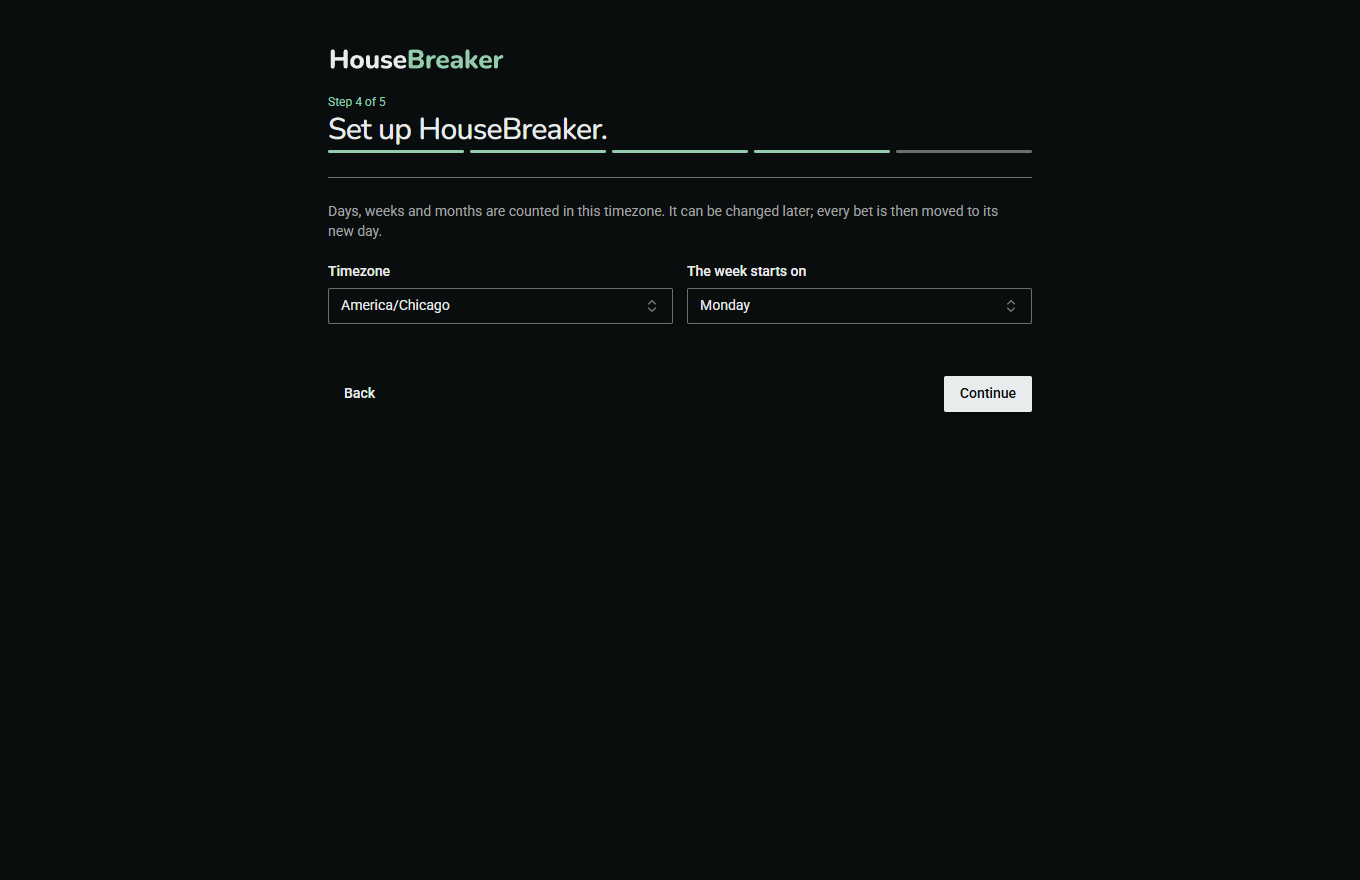
Days, weeks and months are counted in the timezone shown. It is taken from Windows and is right for most people. It can be changed later in Settings; every bet is then moved to its new day.
Step 5: the first budget
Type a monthly purchase budget in US dollars, or leave it empty.
A budget is a limit you set for yourself. HouseBreaker shows how much of it is used and tells you when it is reached. It cannot stop a purchase or a bet, and does not pretend to. More budgets, in SC as well as dollars, can be set later on the Budgets and limits screen.
Press Import and finish.
When it is done
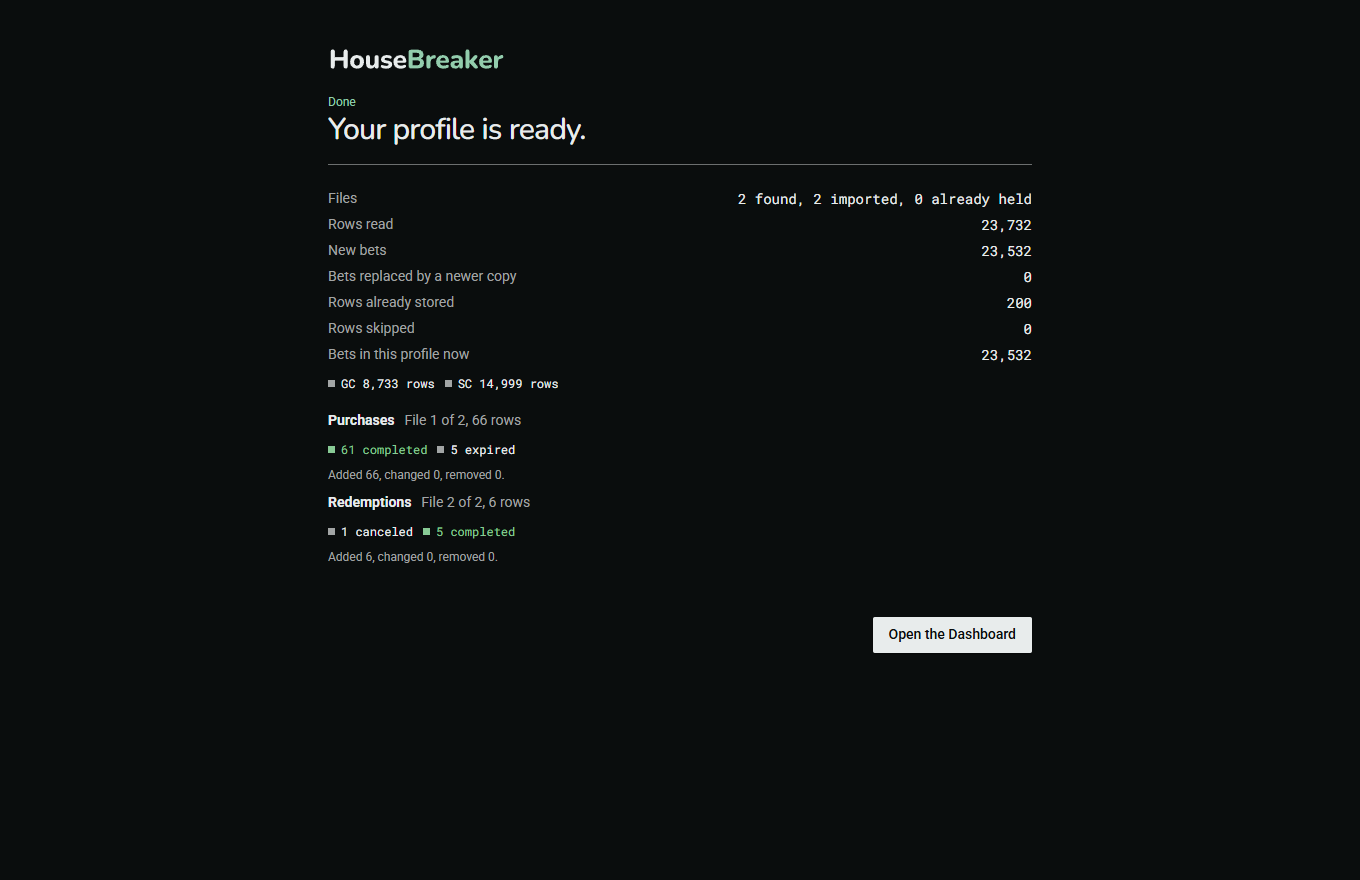
The summary says how many bets were new, how many rows were skipped and why, and how many purchases and redemptions were read. A skipped row is one the file did not describe fully; one bad row never stops an import.
Press Open the Dashboard.
Adding more later
Everything in the set-up can be done again at any time on the Data sources screen.
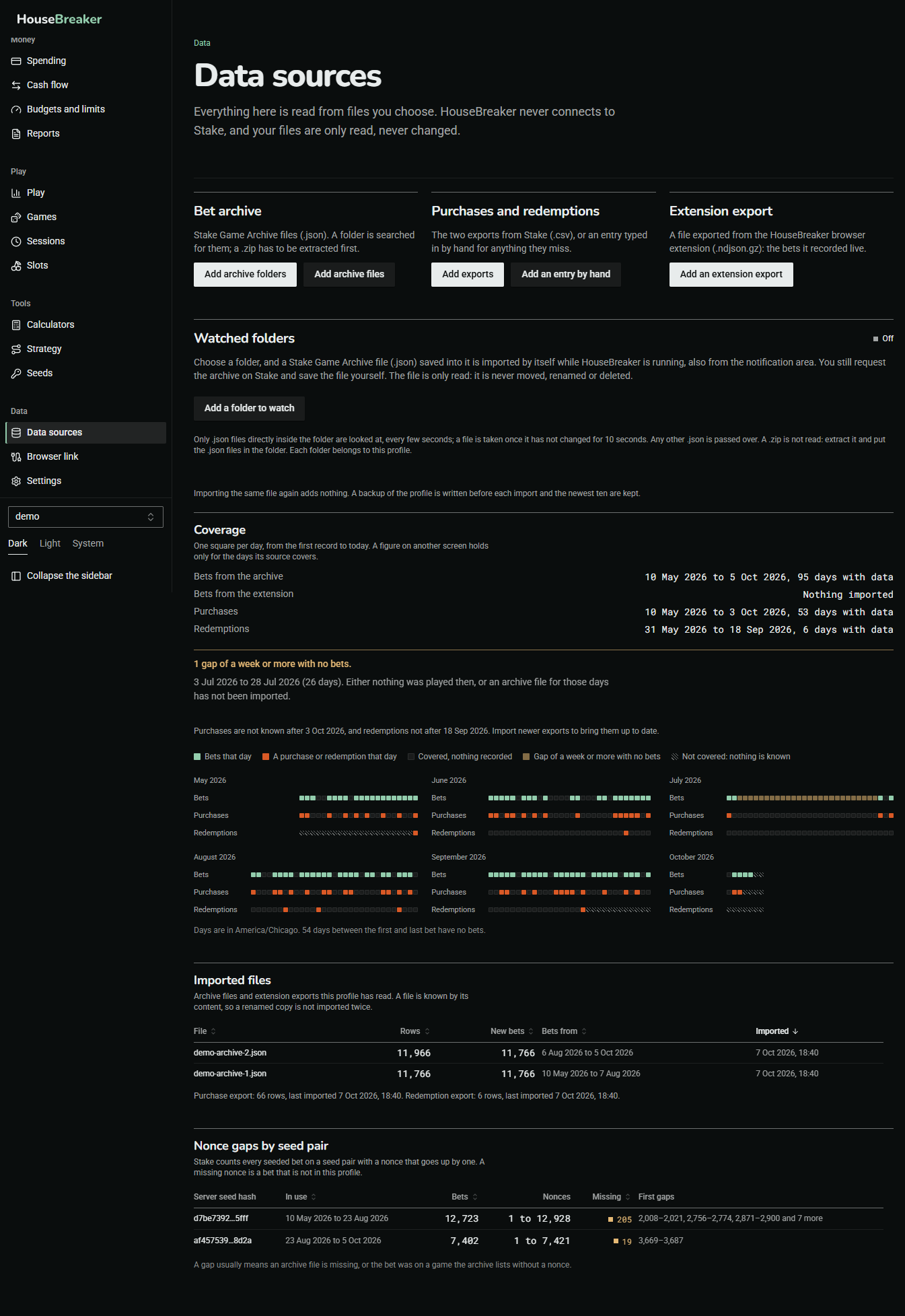
When you download newer archive files from Stake, save them into the same folder and import the folder again, or let a watched folder do it for you: see Using the desktop app.