By the end of this page the HouseBreaker icon will be in your browser's toolbar and the extension will be ready to record on stake.us.
The extension is not in the Chrome Web Store. It is loaded from a folder on your computer, which takes about two minutes and is done once.
Before you start: choose where the folder will live
The browser runs the extension from the folder you unzip. That folder must stay where it is for as long as you use HouseBreaker. If you move, rename or delete it, the extension stops working.
So do not unzip into Downloads, where files get tidied away. Make a folder that will stay put, for example a folder named HouseBreaker inside Documents.
1. Download and unzip
- Download
HouseBreaker-Web-<version>.zip. - Move the zip file into the folder you chose.
- Right-click the zip file and choose Extract All, then Extract.
You now have a folder named HouseBreaker-Web-<version>. Inside it are a file named manifest.json, a file named INSTALL.txt and a few folders. This is the folder the browser needs. Leave everything in it as it is.
2. Load it in your browser
The steps are the same in every browser; only the place of one switch differs. Follow the part for yours.
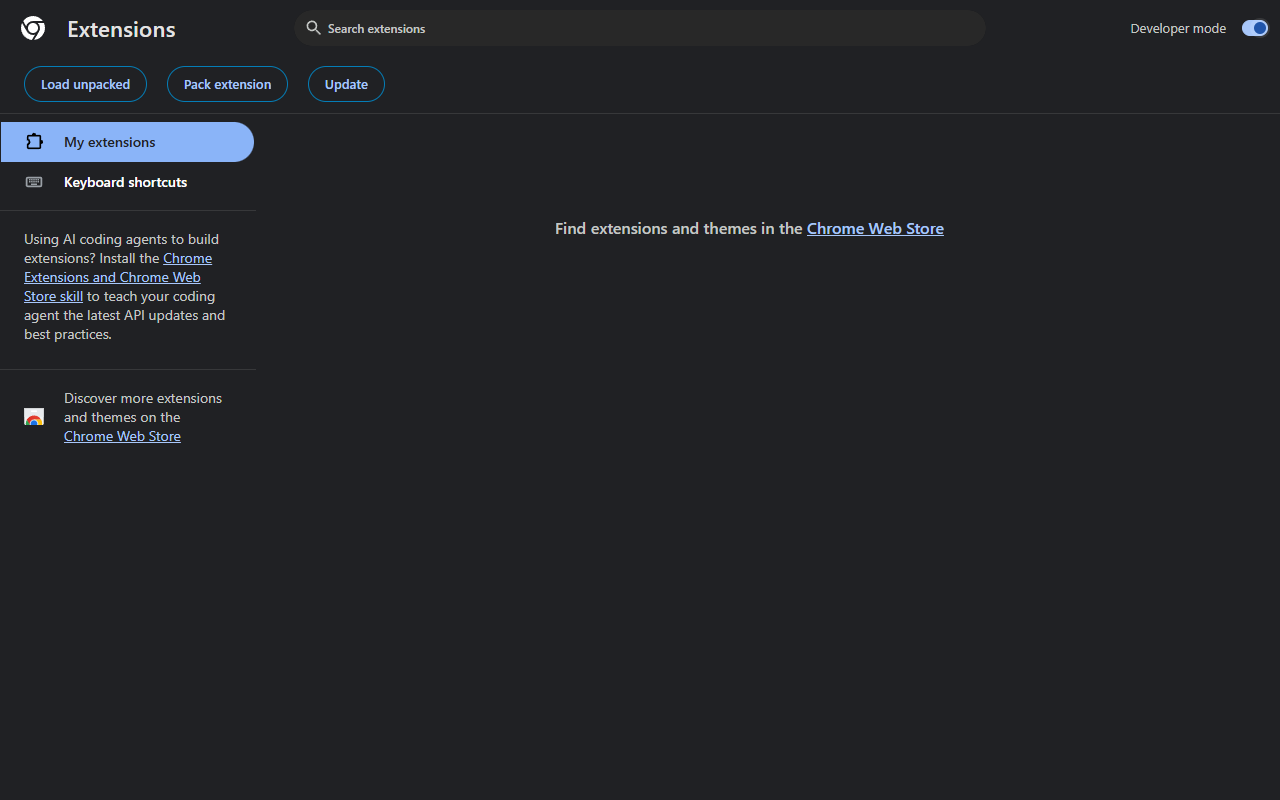
Chrome
- Type
chrome://extensionsin the address bar and press Enter. - Turn on Developer mode, the switch at the top right. Three buttons appear at the top left.
- Press Load unpacked.
- In the window that opens, go to the folder
HouseBreaker-Web-<version>, select it, and press Select Folder.
Edge
- Type
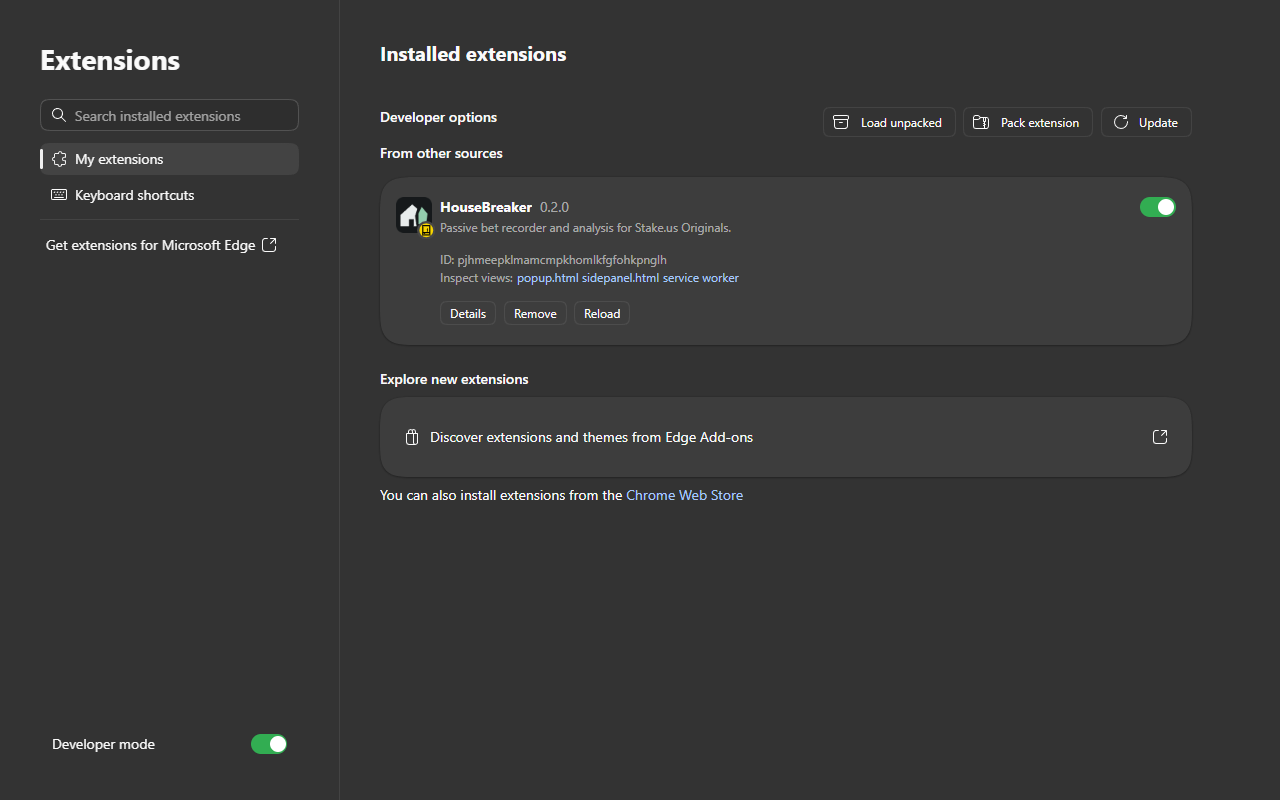
edge://extensionsin the address bar and press Enter. - Turn on Developer mode, the switch at the bottom of the left side. Three buttons appear at the top right.
- Press Load unpacked.
- In the window that opens, go to the folder
HouseBreaker-Web-<version>, select it, and press Select Folder.
Brave
- Type
brave://extensionsin the address bar and press Enter. - Turn on Developer mode, the switch at the top right.
- Press Load unpacked.
- In the window that opens, go to the folder
HouseBreaker-Web-<version>, select it, and press Select Folder.
The page looks like Chrome's.
Vivaldi
- Type
vivaldi://extensionsin the address bar and press Enter. - Turn on Developer mode, the switch at the top right.
- Press Load unpacked.
- In the window that opens, go to the folder
HouseBreaker-Web-<version>, select it, and press Select Folder.
The page looks like Chrome's.
How to tell it worked
HouseBreaker is now in the list of extensions, with its version number and a switch that is on. With Developer mode on, the card also shows an ID. It is the same on every computer:
pjhmeepklmamcmpkhomlkfgfohkpnglh
If the browser says the manifest file is missing, you selected the wrong folder. Select the folder that holds manifest.json, not the folder above it and not the zip file.
3. Pin the icon
A new extension is hidden behind the browser's extensions button until you pin it.
- Chrome and Brave: press the puzzle-piece button at the right of the address bar, find HouseBreaker, and press the pin beside it.
- Edge: press the puzzle-piece button at the right of the address bar, find HouseBreaker, and press the eye beside it ("Show in toolbar").
- Vivaldi: extension icons are shown at the right of the address bar. If HouseBreaker is not there, press the extensions button at the end of the address bar and choose it from the list.
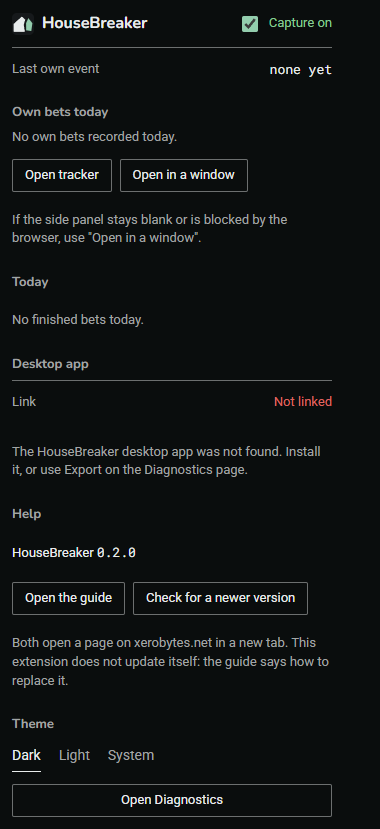
Press the HouseBreaker icon. A small window opens with "Capture on" at the top and the version number under "Help". The extension is installed.
The developer-mode reminder
Because the extension was loaded from a folder, the browser may show a reminder when it starts, with wording such as "Disable developer mode extensions" or "Turn off extensions in developer mode".
- Close the reminder, or choose to keep the extension. Use the X, "Cancel" or "Keep", whichever your browser offers.
- Do not choose "Disable" or "Turn off". That switches HouseBreaker off. If it happens, open the extensions page and turn HouseBreaker's switch back on; nothing is lost.
The reminder is the browser's own and appears for every extension loaded this way. Developer mode has to stay on.
What not to do
- Do not move, rename or delete the folder
HouseBreaker-Web-<version>. The browser reads the extension from it every time it starts. - Do not press "Remove" on the extensions page unless you mean it. Removing the extension deletes everything it has recorded. Export first.
- Do not turn Developer mode off. The browser then switches the extension off.